How to install or transfer the MBSE asio renderer license
In order to properly compile all the separate audio streams used in a multi-track wav or ProRes mov into a stream that can then be decoded by multi-channel sound card, we need to utilize a very specialized ASIO rendering filter. Installed with every copy of Legion II a copy of the MBSE Multichannel Asio Renderer.
The MBSE filter performs the necessary combining of streams, plus it also gives us the ability to perform custom channel routing.
We however did not create this filter, it instead was written by Michael Buchberger, an Austrian software developer. Regrettably this driver is not freeware and does requires the purchase of an additional license in order to continue using it past the ten-day free trial period.
WARNING: Just like Legion’s online activated license, this license is also directly linked to a specific computer. So, it is very important keep track of which license key goes with a which computer.
It is also very important to remember to properly deactivate both licenses before you attempt to reformat and/or reinstall windows. Not doing so will make the license invalid and you may be required to purchase new ones to get back up and running again.
Activating for the first time:
In order to install a license, you first need to access its property pages. To do this, follow these steps:
1) First ensure your computer is connected to the internet.
2) Open either an existing Legion playlist or create a new one with at least one video asset.
3) Select the asset and go to the “Audio Output” settings panel and configure it to use ASIO. Be sure to select “MBSE Multichannel Asio Renderer” before applying the change.
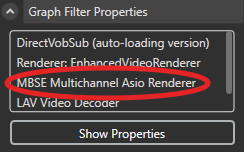
4) After the change is applied go to the “Graph Filter Properties” settings panel and double click on “MBSE Multichannel Asio Renderer”.
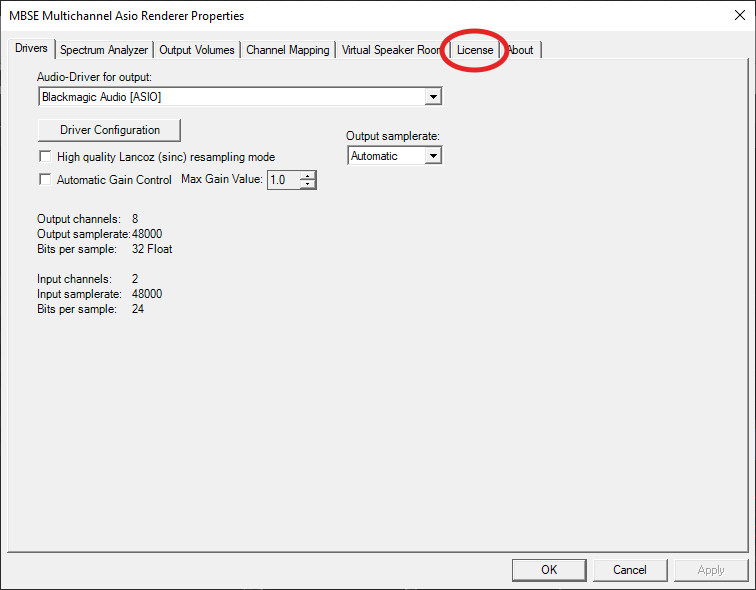
5) Now click on the “License” tab.
6) Insert the separate MBSE activation key into the text box labeled “License Key”. (Do not confuse it with the key used to activate Legion.)
7) Click on “Activate License”.
If all goes well, you will see a conformation dialog appear.
Transfer a license:
It is possible to transfer the license to another computer by following these simple steps.
1) First you will need to ensure that both the old and new computers are connected to the internet.
2) On the unit you are wanting to transfer from, open Legion and get back to the MBSE properties dialog using steps outlined above for activation.
3) Again, insert the key code that belongs to the compter.
4) This time though clcik on "Deactivate License".
You are now free to use the key code to activete on the new compter.
SEE ALSO: