Copyright 2022 IEW Solutions an ifelseWare Conpany
Playlist Data Area
As we all know a playlist is typically a collection of multi-media assets compiled in the form of a list or an array. Each asset can be played-out to an audience in a defined sequence or individually on demand.
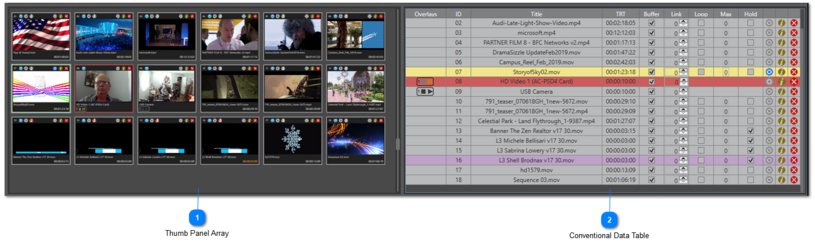
Legion provides the user with two different types of controls to work from. One is a an array of what we call thumb panels. The other is a more conventional data table. You are free to work from either. Both provides the same level of control, so it is up to you as to which you prefer using.
Separating the two is a splitter bar that you can drag left or right to adjust how much of each you want visible.
You can also expand the size of this entire section vertically by dragging the horizontal bar above. Changing the area’s height will affect the size of the monitoring and transport section accordingly.
Thumb Panel Array
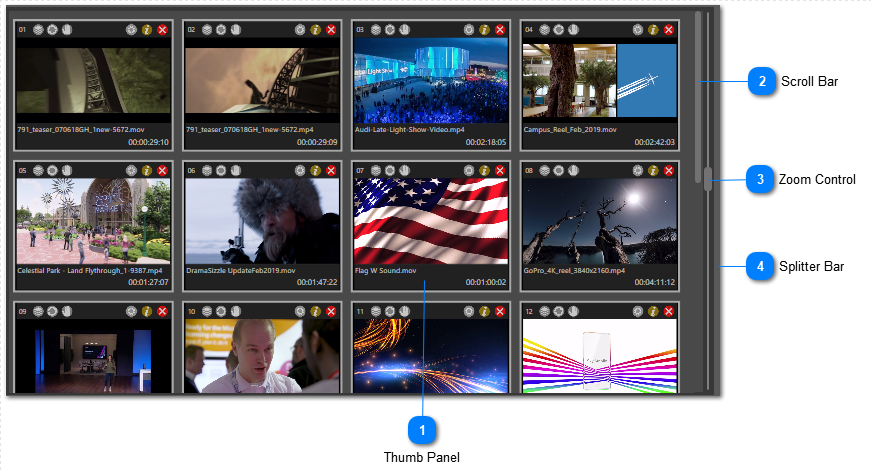
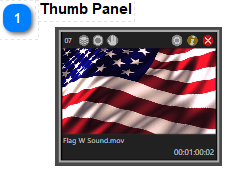
The array is made up of thumb panels, one for each asset in the playlist. To select an asset for play simply click on its image. When an asset is in preview a yellow border around the entire control will appear. Now when it is taken to program the border will turn red.
You can rearrange layout order by simply clicking on the one you want to move, drag it over another and then drop. The asset will now sit in the array after the one you dropped on. You can also make an exact copy of any file-based asset by holding down the ALT before and while you drag it. Now when you drop onto another thumb a full copy will be inserted ahead it.
The array is made up of thumb panels, one for each asset in the playlist. To select an asset for play simply click on its image. When an asset is in preview a yellow border around the entire control will appear. Now when it is taken to program the border will turn red.
You can rearrange layout order by simply clicking on the one you want to move, drag it over another and then drop. The two will change place with each other. You can also make an exact copy of any file-based asset by holding down the ALT before and while you drag it. When you drop onto another thumb inserted ahead of the one you dropped it on.
As an alternative, you may prefer working from conventional data table instead.
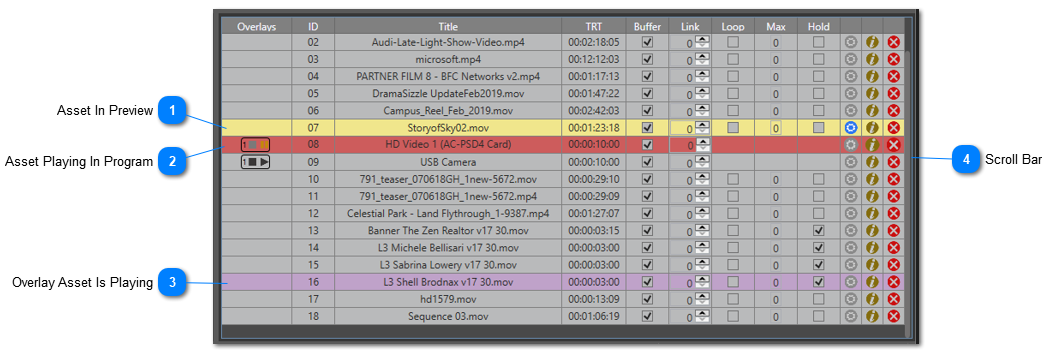
Here assets are arranged in a list. Clicking most anywhere within a row will select that asset and take it to preview, except for cells containing checkboxes and buttons.
Once selected the row’s back color will become yellow. This signifies the asset is now in standing by in preview. When taken to program the row color will turn to red. It should also be noted that anytime an overlay asset is playing its row color will purple.
If you need to rearrange the order, simply click and drag the asset’s row and drop it onto another. The asset will now appear in the list after the one you dropped on. You can also make an exact copy of any file-based asset by holding down the ALT before and while you drag it. Now when you drop onto another row a full copy will be inserted ahead of it.
Each row in the list provides access to some of an asset’s properties which are laid out using a series of cells divided in columns. You are free to directly edit these properties at any time even if the asset is playing. Click here for a detailed description of each column.